
Protocols and Servers
Introduction
This room introduces several protocols commonly used across networks:
- HTTP
- FTP
- POP3
- SMTP
- IMAP
These protocols form the foundation of how you browse the web, transfer files, and send and receive email. Understanding how they work at a low level is essential for anyone pursuing a career in cybersecurity, whether in penetration testing, network defence, or security engineering.
Each protocol task is designed to show what happens beneath the surface, which is usually hidden by a GUI (Graphical User Interface). You will "talk" using the above protocols with a simple Telnet client to understand what your GUI client is doing under the hood. The purpose is not to memorise the protocol commands but rather to observe the protocol while it is working.
Why Learn These Protocols Today?
You might wonder why you are studying protocols that are decades old. There are several important reasons.
First, these protocols are still in use. While most public-facing services now use encrypted versions (HTTPS, SFTP, IMAPS), the underlying protocol mechanics remain the same. The commands you send over HTTPS are the same HTTP commands, wrapped in TLS encryption.
Second, you will encounter cleartext protocols during penetration tests and security assessments. Legacy systems, internal networks, IoT devices, and misconfigured services often still use unencrypted protocols. Recognising and exploiting these weaknesses is a core penetration testing skill.
Third, understanding the protocol helps you understand the attacks. When you know how SMTP works, you understand why email spoofing is possible. When you understand HTTP, web application vulnerabilities make more sense. This foundational knowledge makes you a better security professional.
This room also discusses some of the insecurities inherent in these protocols. In particular, the focus is on passwords sent in cleartext. When credentials are transmitted without encryption, anyone with access to the network traffic can capture them. This was acceptable when these protocols were designed for trusted academic networks, but it is a serious vulnerability on modern networks.
In the follow-up room, Protocols and Servers 2, you will explore how these protocols can be secured using TLS encryption, and examine attacks such as sniffing, man-in-the-middle, and password attacks in more detail.
Prerequisites
This room assumes a working understanding of TCP/IP, ports, and the client-server model. You should also be comfortable with the Linux terminal. If you need a refresher on any of these topics, complete the following first:
?Answer the questions below
- We suggest that you start the AttackBox and the lab machine as you proceed to tackle the following tasks. You can connect to the different services over Telnet for better practice and learning experience.
Telnet
The Telnet protocol is an application-layer protocol used to connect to a virtual terminal of another computer. Using Telnet, a user can log into a remote machine and access its terminal (console) to run programs, start batch processes, and perform system administration tasks remotely.
The Telnet protocol is relatively simple. When a user connects, they are asked for a username and password. Upon correct authentication, the user gains access to the remote system's terminal. However, all communication between the Telnet client and the Telnet server is unencrypted, making it an easy target for attackers.
Telnet Today
Telnet was widely used for remote administration in the early days of networking. However, it has been almost entirely replaced by SSH (Secure Shell) for interactive remote access. You are unlikely to find Telnet enabled on modern, properly configured systems. However, you may still encounter it in:
- Legacy systems and older network equipment (routers, switches, industrial controllers)
- Embedded devices and IoT equipment with limited resources
- Internal networks where security was never prioritised
- Misconfigured systems where Telnet was enabled but never disabled
During penetration tests, finding an open Telnet port (23) is often a significant finding because it indicates either a legacy system or a security misconfiguration.
Telnet Client as a Testing Tool
While Telnet servers are rare, the Telnet client remains useful as a simple tool for connecting to any TCP port and manually interacting with text-based protocols. For example, you can use telnet target 80 to connect to a web server and type HTTP commands manually. This use of Telnet is covered in the Active Reconnaissance room.
How Telnet Works
A Telnet server listens for incoming connections on port 23 using the Telnet protocol. The following terminal output is illustrative and was captured from a separate environment. The Telnet port is not open on the target VM attached to this room, so you will not be able to replicate this specific connection. However, it demonstrates the authentication flow clearly.
The steps are as follows:
- The user is asked to provide their login name (username). In this example, the user enters
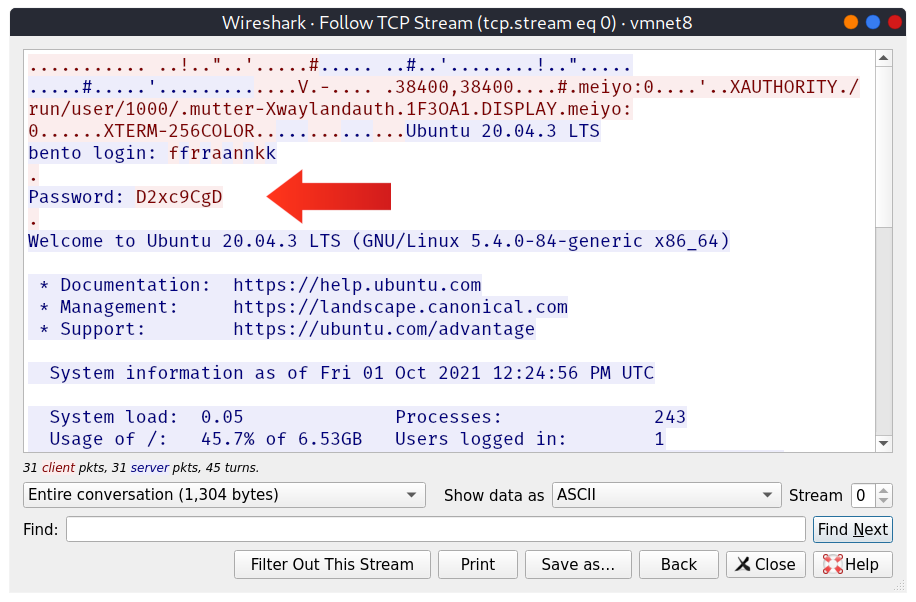
frank. - They are then asked for the password,
D2xc9CgD. The password is not shown on the screen; however, it is displayed below for demonstration purposes. - Once the system checks the login credentials, the user is greeted with a welcome message.
- The remote server grants a command prompt,
frank@bento:~$. The$indicates that this is not a root terminal.
pentester@TryHackMe$ telnet MACHINE_IP
Trying MACHINE_IP...
Connected to MACHINE_IP.
Escape character is '^]'.
Ubuntu 20.04.3 LTS
bento login: frank
Password: D2xc9CgD
Welcome to Ubuntu 20.04.3 LTS (GNU/Linux 5.4.0-84-generic x86_64)
 * Documentation:  https://help.ubuntu.com
 * Management:     https://landscape.canonical.com
 * Support:        https://ubuntu.com/advantage
  System information as of Fri 01 Oct 2021 12:24:56 PM UTC
  System load:  0.05              Processes:              243
  Usage of /:   45.7% of 6.53GB   Users logged in:        1
  Memory usage: 15%               IPv4 address for ens33: MACHINE_IP
  Swap usage:   0%
 * Super-optimized for small spaces - read how we shrank the memory
   footprint of MicroK8s to make it the smallest full K8s around.
   https://ubuntu.com/blog/microk8s-memory-optimisation
0 updates can be applied immediately.
*** System restart required ***
Last login: Fri Oct  1 12:17:25 UTC 2021 from meiyo on pts/3
You have mail.
frank@bento:~$
Although Telnet provides access to the remote system's terminal quickly, it is not a reliable protocol for remote administration because all data is sent in cleartext. In the figure below, the traffic generated by Telnet has been captured, and it was trivial to find the password. The figure shows the ASCII data exchanged between the client and the remote system. The text in red is what the client sends, while the text in blue is what the remote system sends back. Notice how the username was echoed back to display in the terminal; however, the password was not. In other words, if someone were watching the screen, they would not see the password characters. However, this visual protection is meaningless because the password still travels across the network in cleartext.
Why Telnet is Insecure
Telnet is no longer considered a secure option. Anyone capturing your network traffic can discover your usernames and passwords, which would grant them access to the remote system. This includes:
- Attackers on the same network segment
- Anyone who has compromised a router or switch along the path
- Malicious insiders with network access
- Anyone performing a successful man-in-the-middle attack
The secure alternative is SSH (Secure Shell), which encrypts all traffic, including credentials. SSH has been the standard for remote command-line access for over two decades.
?Answer the questions below
- To which port will the telnet command with the default parameters try to connect?
Hypertext Transfer Protocol (HTTP)
Hypertext Transfer Protocol (HTTP) is the protocol used to transfer web pages. Your web browser connects to the web server and uses HTTP to request HTML pages, images, and other files. It also submits forms and uploads various files. Any time you browse the World Wide Web (WWW), you are using the HTTP protocol.
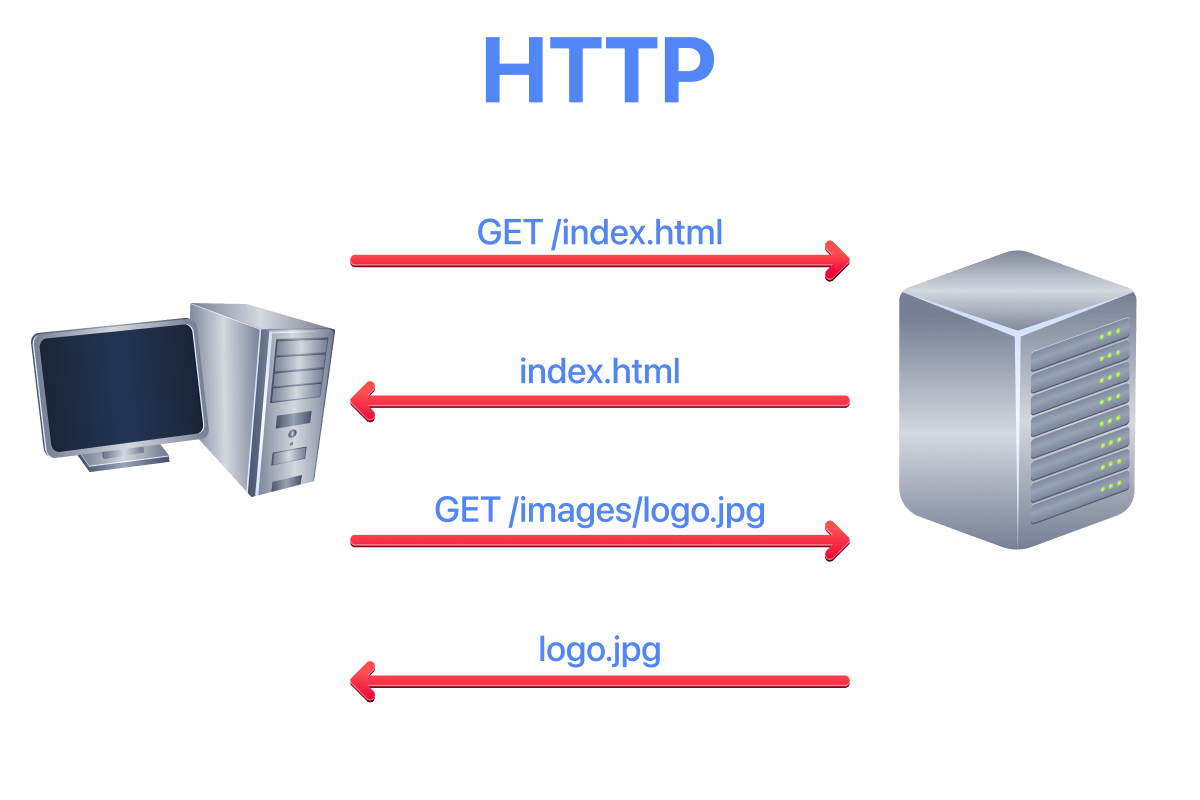
The image below shows a client requesting the HTML page index.html, which the web server provides. The client then requests an image, logo.jpg, and the web server sends it.
HTTP vs HTTPS
HTTP sends and receives data as cleartext (not encrypted). This means anyone with access to the network traffic can read the content being transferred, including sensitive information like login credentials and personal data.
Today, the vast majority of websites use HTTPS (HTTP Secure), which wraps HTTP inside TLS encryption. Modern browsers mark plain HTTP sites as "Not Secure", and some features (like geolocation and camera access) are blocked entirely on non-HTTPS sites. However, understanding how HTTP works is still essential because:
- The HTTP commands and structure are identical whether using HTTP or HTTPS.
- You will encounter HTTP during internal penetration tests and on legacy systems.
- Understanding the protocol helps you identify and exploit web vulnerabilities.
- Tools like Burp Suite decrypt HTTPS traffic for analysis, showing you raw HTTP.
For this demonstration, plain HTTP is used so you can see exactly what is being transmitted.
Manually Sending HTTP Requests
Because HTTP is a cleartext protocol, you can use a simple tool such as Telnet (or Netcat) to communicate with a web server and act as a "web browser". The key difference is that you need to input the HTTP-related commands instead of the web browser doing that for you.
In the following example, you will see how to request a page from a web server and discover the web server version. The Telnet client is used because Telnet is a simple protocol that uses cleartext for communication. The steps are as follows:
- Connect to port 80 using
telnet MACHINE_IP 80. - Type
GET /index.html HTTP/1.1to retrieve the pageindex.html, orGET / HTTP/1.1to retrieve the default page. - Provide a value for the host header, such as
host: telnet, and press the Enter/Return key twice.
In the console output below, the requested page is recovered along with information not usually displayed by the web browser. If the requested page is not found, the server returns error 404.
pentester@TryHackMe$ telnet MACHINE_IP 80
Trying MACHINE_IP...
Connected to MACHINE_IP.
Escape character is '^]'.
GET /index.html HTTP/1.1
host: telnet

HTTP/1.1 200 OK
Server: nginx/1.18.0 (Ubuntu)
Date: Wed, 15 Sep 2021 08:56:20 GMT
Content-Type: text/html
Content-Length: 234
Last-Modified: Wed, 15 Sep 2021 08:53:59 GMT
Connection: keep-alive
ETag: "6141b4a7-ea"
Accept-Ranges: bytes

<!DOCTYPE html>
<html lang="en">
<head>
  <title>Welcome to my Web Server</title>
  <meta charset="UTF-8" />
  <meta name="viewport" content="width=device-width,initial-scale=1" />
</head>
<body>
  <h1>Coming Soon</h1>
</body>
</html>
The key input from the user is two lines: GET /index.html HTTP/1.1 followed by host: telnet.
Information Revealed in HTTP Headers
Notice the response headers in the example above. The Server: nginx/1.18.0 (Ubuntu) header reveals both the web server software and version, as well as the operating system. This information is valuable during reconnaissance because:
- Specific versions may have known vulnerabilities you can research.
- The OS information helps tailor further attacks.
- Even knowing the web server software narrows down potential attack vectors.
Security-conscious administrators often configure their servers to suppress or obscure this information. During a penetration test, finding detailed version information in headers is worth noting.
Web Servers and Clients
An HTTP server (web server) and an HTTP client (web browser) are required to use the HTTP protocol. The web server "serves" a specific set of files to the requesting web browser.
Popular choices for HTTP servers include:
- Nginx has become the most widely used web server on the internet, known for its performance and efficiency in handling concurrent connections. It is free and open-source.
- Apache remains extremely popular and powers a large portion of websites. It is highly configurable with a vast ecosystem of modules. It is also free and open-source.
- Internet Information Services (IIS) is Microsoft's web server, commonly found in Windows enterprise environments. It requires a Windows Server licence.
Other notable web servers include LiteSpeed, Caddy (which has automatic HTTPS built in), and Node.js for JavaScript-based applications.
The most popular web browsers today are:
- Chrome by Google (dominant market share)
- Safari by Apple (default on macOS and iOS)
- Edge by Microsoft (Chromium-based, replaced Internet Explorer)
- Firefox by Mozilla (open-source, privacy-focused)
Web browsers are generally free to install and use. For penetration testing and security research, Firefox is often preferred because of its extensive developer tools and add-on ecosystem.
HTTP Protocol Versions
The example above uses HTTP/1.1, which has been the workhorse of the web for decades. However, newer versions exist.
HTTP/2 introduced multiplexing (multiple requests over a single connection), header compression, and server push. It is binary rather than text-based, making it harder to manually interact with using Telnet.
HTTP/3 uses QUIC (built on UDP) instead of TCP, offering improved performance, especially on unreliable networks. It is increasingly common on major websites.
For learning purposes and manual testing, HTTP/1.1 remains the most accessible because of its human-readable text format.
?Answer the questions below
- Launch the attached VM. From the AttackBox terminal, connect using Telnet to MACHINE_IP 80 and retrieve the file flag.thm . What does it contain?
File Transfer Protocol (FTP)
File Transfer Protocol (FTP) was developed to make the transfer of files between different computers with different systems efficient. It was one of the earliest protocols designed for the internet and remains in use today, though it has largely been replaced by secure alternatives for most purposes.
Modern FTP
FTP sends credentials and data in cleartext, making it insecure for transferring sensitive information. For this reason, FTP has been replaced in most environments by:
- SFTP (SSH File Transfer Protocol) runs over SSH on port 22 and encrypts all traffic. This is the most common replacement for FTP.
- FTPS (FTP Secure) adds TLS encryption to the FTP protocol on port 990 (implicit TLS) or uses STARTTLS on port 21.
- SCP (Secure Copy Protocol) also runs over SSH, though it is being deprecated in favour of SFTP.
However, you will still encounter plain FTP in:
- Legacy systems and older applications that have not been updated
- Anonymous FTP servers for public file distribution
- Internal networks where encryption was never implemented
- Embedded devices and network equipment with limited capabilities
- Misconfigured servers where secure alternatives were not enabled
During penetration tests, finding an FTP server (especially one allowing anonymous login) is a common and significant finding.
Manually Interacting with FTP
FTP sends and receives data as cleartext, so you can use Telnet (or Netcat) to communicate with an FTP server and act as an FTP client. In the example below, the following steps were carried out:
- A connection was made to an FTP server using a Telnet client. Since FTP servers listen on port 21 by default, the Telnet client was directed to connect to port 21 instead of the default Telnet port.
- The username was provided with the command
USER frank. - The password was provided with the command
PASS D2xc9CgD. - Because the correct username and password were supplied, login succeeded.
A command like STAT can provide additional information. The SYST command shows the System Type of the target (UNIX in this case). PASV switches the mode to passive. It is worth noting that there are two modes for FTP:
- Active: In active mode, the data is sent over a separate channel originating from the FTP server's port 20. The server initiates the data connection back to the client. This often fails when the client is behind a firewall or NAT.
- Passive: In passive mode, the data is sent over a separate channel originating from an FTP client's port above port number 1023. The client initiates both connections. This is more firewall-friendly and is the default for most modern FTP clients.
The command TYPE A switches the file transfer mode to ASCII, while TYPE I switches the file transfer mode to binary. However, a file transfer cannot be completed using a simple client such as Telnet because FTP creates a separate connection for data transfer.
pentester@TryHackMe$ telnet MACHINE_IP 21
Trying MACHINE_IP...
Connected to MACHINE_IP.
Escape character is '^]'.
220 (vsFTPd 3.0.3)
USER frank
331 Please specify the password.
PASS D2xc9CgD
230 Login successful.
SYST
215 UNIX Type: L8
PASV
227 Entering Passive Mode (10,10,0,148,78,223).
TYPE A
200 Switching to ASCII mode.
STAT
211-FTP server status:
     Connected to ::ffff:10.10.0.1
     Logged in as frank
     TYPE: ASCII
     No session bandwidth limit
     Session timeout in seconds is 300
     Control connection is plain text
     Data connections will be plain text
     At session startup, client count was 1
     vsFTPd 3.0.3 - secure, fast, stable
211 End of status
QUIT
221 Goodbye.
Connection closed by foreign host.
Notice in the STAT output that the server explicitly states "Control connection is plain text" and "Data connections will be plain text". This confirms that everything, including credentials, is transmitted without encryption.
How FTP File Transfer Works
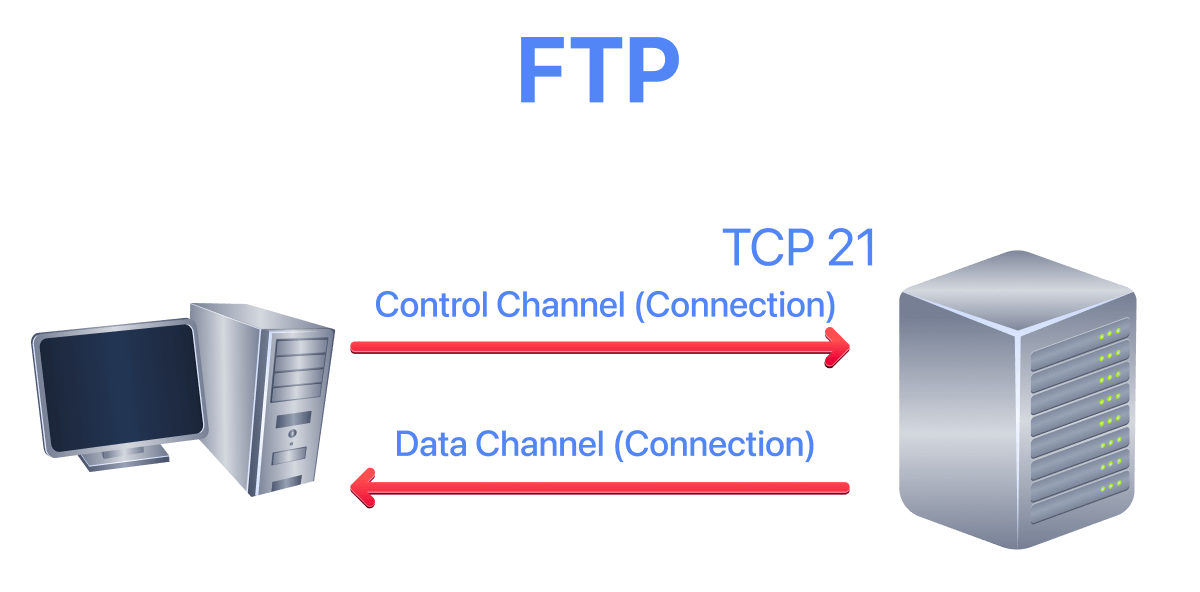
The image below shows how an actual file transfer is conducted using FTP. The FTP client initiates a connection to an FTP server, which listens on port 21 by default. All commands are sent over the control channel. Once the client requests a file, another TCP connection is established between them for the data transfer. This dual-connection architecture is one reason FTP can be problematic with firewalls.
Using an FTP Client
Because of the dual-connection architecture, an actual FTP client is needed to download files. After logging in successfully, you get the FTP prompt, ftp>, to execute various FTP commands. In the example below, ls lists the files, ascii switches to ASCII mode since the target is a text file (not binary), and get FILENAME initiates the file transfer by establishing a separate data channel.
pentester@TryHackMe$ ftp MACHINE_IP
Connected to MACHINE_IP.
220 (vsFTPd 3.0.3)
Name: frank
331 Please specify the password.
Password: D2xc9CgD
230 Login successful.
Remote system type is UNIX.
Using binary mode to transfer files.
ftp> ls
227 Entering Passive Mode (10,20,30,148,201,180).
150 Here comes the directory listing.
-rw-rw-r--    1 1001     1001         4006 Sep 15 10:27 README.txt
226 Directory send OK.
ftp> ascii
200 Switching to ASCII mode.
ftp> get README.txt
local: README.txt remote: README.txt
227 Entering Passive Mode (10,10,0,148,125,55).
150 Opening BINARY mode data connection for README.txt (4006 bytes).
WARNING! 9 bare linefeeds received in ASCII mode
File may not have transferred correctly.
226 Transfer complete.
4006 bytes received in 0.000269 secs (14892.19 Kbytes/sec)
ftp> exit
221 Goodbye.
Anonymous FTP
Some FTP servers allow anonymous login, typically using the username anonymous or ftp with any email address as the password (or no password at all). Anonymous FTP was historically used for public file distribution, such as software downloads and documentation. During penetration testing, always try an anonymous login when you discover an FTP server:
ftp> USER anonymous
331 Please specify the password.
ftp> PASS anything@example.com
230 Login successful.
Anonymous FTP servers might contain sensitive files that were accidentally exposed, configuration backups, or provide a way to upload malicious files if write access is enabled.
FTP Servers and Clients
There are various FTP server software options available:
- vsftpd (Very Secure FTP Daemon) is one of the most common FTP servers on Linux systems.
- ProFTPD is highly configurable and modular.
- Pure-FTPd focuses on security and simplicity.
- On Windows, IIS includes FTP server capabilities.
For FTP clients, in addition to the console FTP client commonly found on Linux systems, you can use a GUI-based client such as FileZilla. Note that major web browsers have removed FTP support in recent years, so browser-based FTP access is no longer available.
Security Implications
Because FTP sends login credentials, commands, and files in cleartext, FTP traffic is an easy target for attackers. Anyone capturing network traffic can see usernames and passwords, file contents being transferred, directory listings revealing server structure, and the commands showing what actions users are performing.
If you must use FTP, restrict it to isolated networks or use FTPS with TLS encryption. For most purposes, SFTP over SSH is the recommended alternative.
Questions
For this task, use the FTP client on the AttackBox to connect to MACHINE_IP. The credentials are frank / D2xc9CgD.
?Answer the questions below
- Using an FTP client, connect to the VM and try to recover the flag file. What is the flag? Username: frank Password: D2xc9CgD
Simple Mail Transfer Protocol (SMTP)
Email is one of the most used services on the Internet. There are various configurations for email servers; for instance, you may set up an email system to allow local users to exchange emails with each other with no access to the Internet. However, this task considers the more general setup where different email servers connect over the Internet.
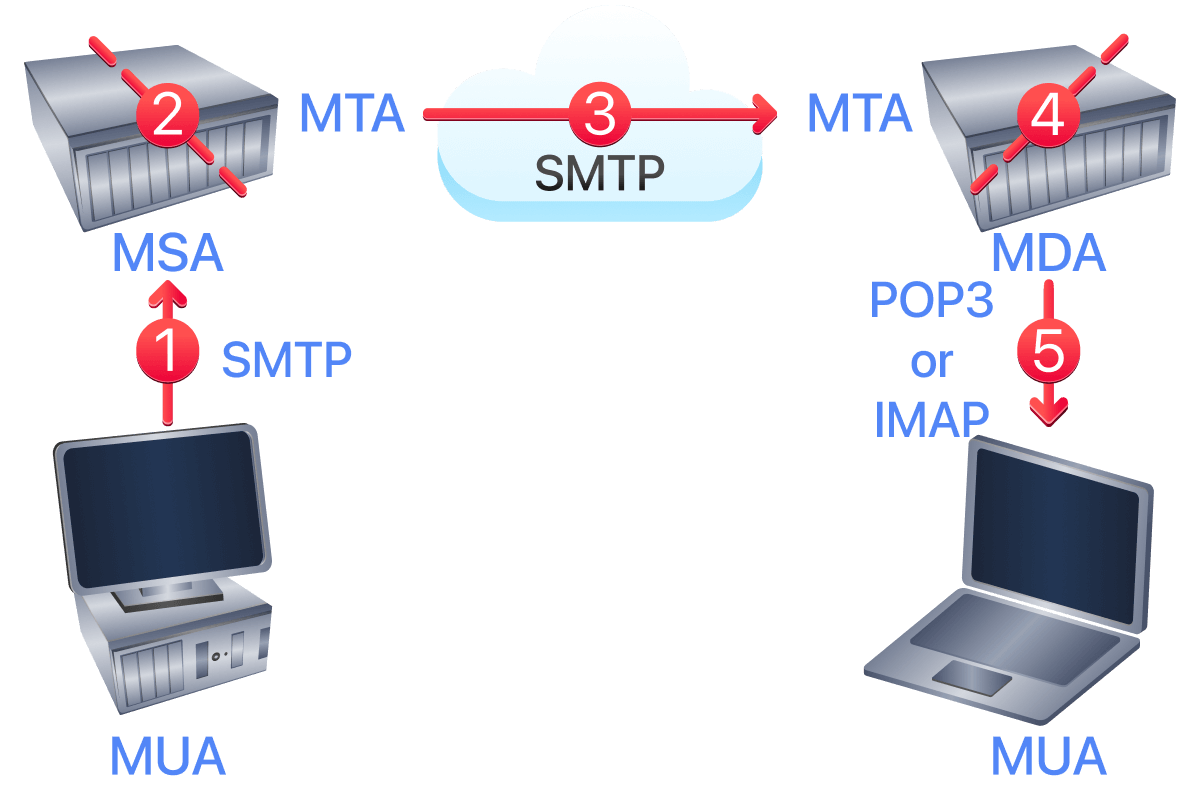
Email Delivery Components
Email delivery over the Internet requires the following components:
- Mail User Agent (MUA): The email client (e.g., Thunderbird, Outlook, a webmail interface).
- Mail Submission Agent (MSA): Receives mail from the MUA, checks for errors, and forwards it.
- Mail Transfer Agent (MTA): Routes and delivers mail between servers.
- Mail Delivery Agent (MDA): Stores the email in the recipient's mailbox for retrieval.
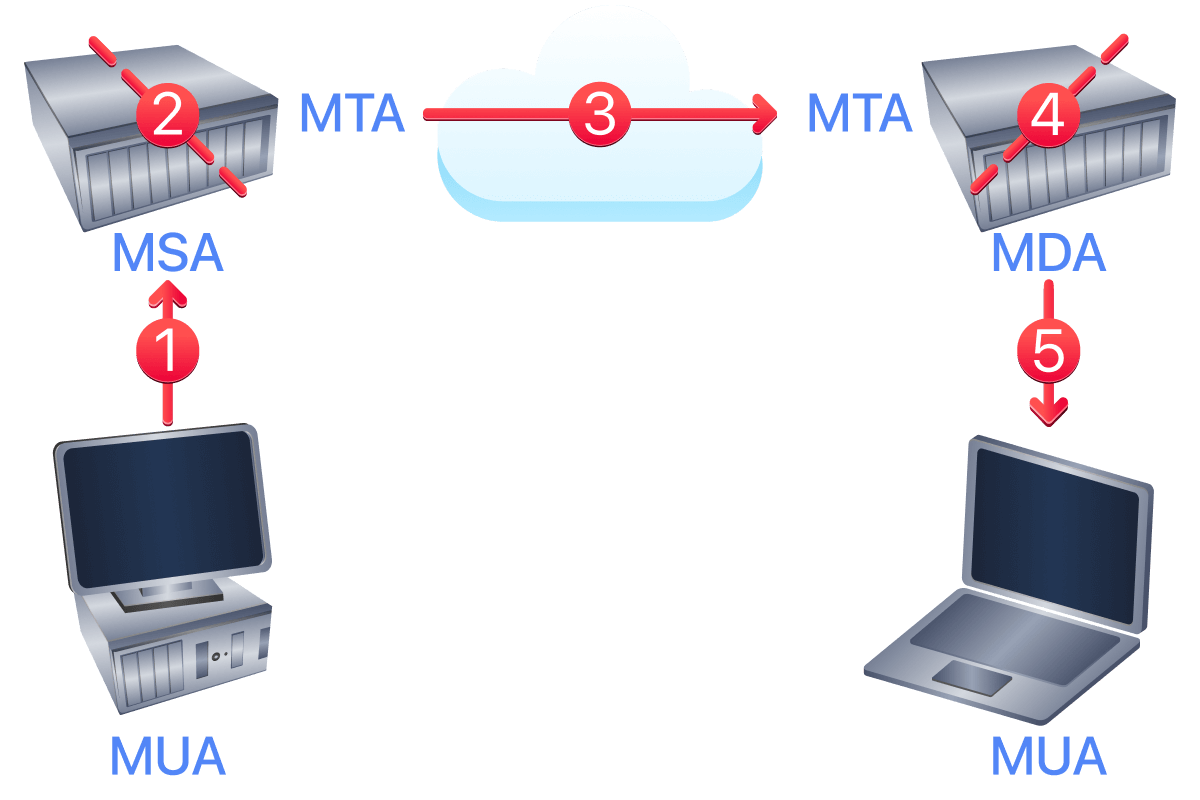
The figure shows the following five steps that an email needs to go through to reach the recipient's inbox:
- The MUA has an email message to be sent. It connects to the MSA to submit the message.
- The MSA receives the message, checks for any errors before transferring it to the MTA, which is commonly hosted on the same server.
- The MTA sends the email message to the MTA of the recipient. The MTA can also function as an MSA.
- A typical setup has the MTA server also functioning as the MDA.
- The recipient collects their email from the MDA using their email client (MUA).
If the above steps sound confusing, consider the following analogy:
- You (MUA) want to send postal mail.
- The post office employee (MSA) checks the postal mail for any issues before your local post office (MTA) accepts it.
- The local post office checks the mail destination and sends it to the post office (MTA) in the correct country.
- The post office (MTA) delivers the mail to the recipient's mailbox (MDA).
- The recipient (MUA) regularly checks the mailbox for new mail. They notice the new mail and take it.
Email Protocols
In the same way you follow a protocol to communicate with an HTTP server, you rely on email protocols to talk with an MTA and an MDA. The protocols are:
- Simple Mail Transfer Protocol (SMTP) for sending email
- Post Office Protocol version 3 (POP3) or Internet Message Access Protocol (IMAP) for receiving email
SMTP is explained in this task. POP3 and IMAP are covered in the following two tasks.
SMTP Ports and Encryption
Simple Mail Transfer Protocol (SMTP) is used to communicate with an MTA server. The original SMTP uses cleartext, where all commands are sent without encryption. However, modern email infrastructure uses several ports with different security models:
- Port 25 is the traditional SMTP port used for server-to-server communication (MTA to MTA). It is often blocked by ISPs for residential connections to prevent spam. On port 25, encryption is optional and negotiated via STARTTLS.
- Port 587 is the submission port, used by email clients (MUA) to submit messages to their mail server (MSA). This is the recommended port for sending email and typically requires authentication. TLS encryption is negotiated via the STARTTLS command.
- Port 465 was originally designated for SMTPS (SMTP over implicit TLS), then deprecated, and has since been reinstated. On this port, TLS encryption begins immediately upon connection.
For this demonstration, plain SMTP on port 25 is used so you can see the protocol commands in cleartext.
Manually Sending Email with Telnet
Because SMTP can use cleartext, you can use a basic Telnet client to connect to an SMTP server and act as an email client (MUA), sending a message. Once connected, issue helo hostname (or ehlo hostname for extended SMTP) and then start composing the email.
pentester@TryHackMe$ telnet MACHINE_IP 25
Trying MACHINE_IP...
Connected to MACHINE_IP.
Escape character is '^]'.
220 bento.localdomain ESMTP Postfix (Ubuntu)
helo telnet
250 bento.localdomain
mail from:
250 2.1.0 Ok
rcpt to:
250 2.1.5 Ok
data
354 End data with .
subject: Sending email with Telnet
Hello Frank,
I am just writing to say hi!
.
250 2.0.0 Ok: queued as C3E7F45F06
quit
221 2.0.0 Bye
Connection closed by foreign host.
After helo, the commands mail from: and rcpt to: indicate the sender and the recipient. When the email message is ready, the data command begins the message body. The message is ended by typing a period on a line by itself (. followed by Enter). The SMTP server then queues the message.
You do not need to memorise these SMTP commands. The console output above is provided to illustrate what a typical mail client does when it uses SMTP.
Email Spoofing and Why It Works
Notice something important in the example above: the "from" address was specified manually, and the server accepted it without verifying that the sender actually controls that email address. This is how email spoofing works. SMTP was designed in an era of trusted networks and has no built-in mechanism to verify sender identity.
This is why phishing emails can appear to come from legitimate addresses. The protocol itself does not prevent an attacker from claiming to be anyone.
Security Implications
Understanding SMTP is important for security professionals because:
- Email remains the primary vector for phishing attacks.
- Misconfigured mail servers can be used as open relays for spam.
- Cleartext SMTP exposes email content and credentials to network sniffing.
- Knowledge of SMTP helps you understand email header analysis during incident response.
During penetration tests, you might test for open relay configurations, attempt email spoofing to assess security awareness, or analyse email headers to trace the origin of suspicious messages.
Modern email authentication mechanisms (SPF, DKIM, DMARC) exist to combat spoofing. These are covered in the follow-up room, Protocols and Servers 2, alongside other mitigation techniques.
?Answer the questions below
- Using the AttackBox terminal, connect to the SMTP port of the target VM. What is the flag that you can get?
Post Office Protocol 3 (POP3)
Post Office Protocol version 3 (POP3) is a protocol used to download email messages from a Mail Delivery Agent (MDA) server, as shown in the figure below. The mail client connects to the POP3 server, authenticates, downloads the new email messages, and then (optionally) deletes them from the server.
POP3 Ports and Encryption
Like other protocols covered in this room, POP3 was designed without encryption:
- Port 110 is the default POP3 port using cleartext. Some servers support upgrading the connection to TLS using the STLS command (similar to STARTTLS in SMTP).
- Port 995 is used for POP3S (POP3 over implicit TLS). The connection is encrypted from the start.
Most email providers today require or strongly encourage POP3S on port 995. However, you may still encounter plaintext POP3 on internal networks, legacy systems, or misconfigured servers.
Manually Interacting with POP3
The example below shows what a POP3 session looks like when conducted via a Telnet client. First, the user connects to the POP3 server at the POP3 default port 110. Authentication is required to access the email messages; the user authenticates by providing their username USER frank and password PASS D2xc9CgD. Using the command STAT, the reply +OK 1 179 is returned; based on RFC 1939, a positive response to STAT has the format +OK nn mm, where nn is the number of email messages in the inbox, and mm is the size of the inbox in octets (bytes). The command LIST provides a list of new messages on the server, and RETR 1 retrieves the first message in the list.
pentester@TryHackMe$ telnet MACHINE_IP 110
Trying MACHINE_IP...
Connected to MACHINE_IP.
Escape character is '^]'.
+OK MACHINE_IP Mail Server POP3 Wed, 15 Sep 2021 11:05:34 +0300
USER frank
+OK frank
PASS D2xc9CgD
+OK 1 messages (179) octets
STAT
+OK 1 179
LIST
+OK 1 messages (179) octets
1 179
.
RETR 1
+OK
From: Mail Server
To: Frank
subject: Sending email with Telnet
Hello Frank,
I am just writing to say hi!
.
QUIT
+OK MACHINE_IP closing connection
Connection closed by foreign host.
You do not need to memorise these commands; however, the example helps strengthen your understanding of the protocol. The commands are sent in cleartext, and using Telnet was enough to authenticate and retrieve an email message. As the username and password are sent in cleartext, any third party observing the network traffic can steal the login credentials.
In general, your mail client (MUA) will connect to the POP3 server (MDA), authenticate, and download the messages. Although the communication using the POP3 protocol will be hidden behind a graphical interface, similar commands will be issued, as shown in the Telnet session above.
Common POP3 Commands
| Command | Description |
|---|---|
| USER username | Identifies the user |
| PASS password | Authenticates with the password |
| STAT | Returns the number of messages and the total size |
| LIST | Lists all messages with their sizes |
| RETR n | Retrieves message number n |
| DELE n | Marks message n for deletion |
| RSET | Resets (unmarks) messages marked for deletion |
| QUIT | Ends the session and deletes marked messages |
POP3 Behaviour: Download and Delete
Based on the default settings, the mail client deletes the mail message after it downloads it. This "download and delete" model means:
- Emails are stored locally on your device, not on the server.
- Once downloaded, the email is only accessible from that specific device.
- If your device is lost or damaged, the emails are gone (unless backed up).
- Storage on the mail server is minimised.
The default behaviour can be changed from the mail client settings to keep copies on the server. However, accessing the same mail account via multiple clients using POP3 is usually not convenient because each client downloads its own copy, and there is no synchronisation between them. One would lose track of read and unread messages.
To keep all mailboxes synchronised across multiple devices, a different protocol is needed, such as IMAP, which is covered in the next task.
POP3 vs IMAP: When to Use Each
POP3 is still useful in specific scenarios:
- When you want to access email offline and have limited or unreliable internet connectivity
- When you need to minimise server-side storage
- When you only access email from a single device
- For archiving emails locally
However, IMAP has largely replaced POP3 for most users because of its synchronisation capabilities.
Security Implications
From a security perspective, finding a POP3 server (especially on port 110) during a penetration test presents opportunities. Credentials sent over cleartext POP3 can be captured through network sniffing, password attacks can be conducted against POP3 authentication, and successful access to a mailbox may reveal sensitive information, credentials for other systems, or password reset links.
If you capture POP3 traffic and see the USER and PASS commands, you have obtained valid credentials that might be reused on other systems.
?Answer the questions below
- Connect to the VM ( MACHINE_IP ) at the POP3 port. Authenticate using the username frank and password D2xc9CgD . What is the response you get to STAT ?
- How many email messages are available to download via POP3 on MACHINE_IP ?
Internet Message Access Protocol (IMAP)
Internet Message Access Protocol (IMAP) is more sophisticated than POP3. IMAP makes it possible to keep email synchronised across multiple devices (and mail clients). If you mark an email message as read when checking your email on your smartphone, the change is saved on the IMAP server (MDA) and replicated on your laptop when you synchronise your inbox.
Why IMAP Became the Standard
IMAP has largely replaced POP3 for most users because of how email is accessed today. People check email from their phones, laptops, tablets, and web browsers, often switching between devices throughout the day. IMAP's server-side storage model makes this seamless:
- Emails remain on the server and are accessible from any device.
- Read/unread status, folders, and flags are synchronised across all clients.
- Deleting an email on one device removes it everywhere.
- Search can be performed server-side without downloading all messages.
This is in contrast to POP3's download-and-delete model, where each device has its own separate copy of messages.
IMAP Ports and Encryption
Like other email protocols, IMAP was originally designed without encryption:
- Port 143 is the default IMAP port using cleartext. Many servers support upgrading the connection to TLS using the STARTTLS command.
- Port 993 is used for IMAPS (IMAP over implicit TLS). The connection is encrypted from the start.
Most email providers today require IMAPS on port 993. Major providers like Gmail, Outlook, and Yahoo have disabled plaintext IMAP access entirely. However, you may still encounter plaintext IMAP on internal mail servers or legacy systems.
Manually Interacting with IMAP
The console output below shows a sample IMAP session. Telnet is used to connect to the IMAP server's default port, and then authentication is performed using LOGIN username password. IMAP requires each command to be preceded by a random string (called a tag) to be able to track the reply. So the tags c1, c2, and so on are used. Then the mail folders are listed using LIST "" "*", before checking for new messages in the inbox using EXAMINE INBOX.
pentester@TryHackMe$ telnet MACHINE_IP 143
Trying MACHINE_IP...
Connected to MACHINE_IP.
Escape character is '^]'.
* OK [CAPABILITY IMAP4rev1 UIDPLUS CHILDREN NAMESPACE THREAD=ORDEREDSUBJECT THREAD=REFERENCES SORT QUOTA IDLE ACL ACL2=UNION STARTTLS ENABLE UTF8=ACCEPT] Courier-IMAP ready. Copyright 1998-2018 Double Precision, Inc.  See COPYING for distribution information.
c1 LOGIN frank D2xc9CgD
* OK [ALERT] Filesystem notification initialization error -- contact your mail administrator (check for configuration errors with the FAM/Gamin library)
c1 OK LOGIN Ok.
c2 LIST "" "*"
* LIST (\HasNoChildren) "." "INBOX.Trash"
* LIST (\HasNoChildren) "." "INBOX.Drafts"
* LIST (\HasNoChildren) "." "INBOX.Templates"
* LIST (\HasNoChildren) "." "INBOX.Sent"
* LIST (\Unmarked \HasChildren) "." "INBOX"
c2 OK LIST completed
c3 EXAMINE INBOX
* FLAGS (\Draft \Answered \Flagged \Deleted \Seen \Recent)
* OK [PERMANENTFLAGS ()] No permanent flags permitted
* 0 EXISTS
* 0 RECENT
* OK [UIDVALIDITY 631694851] Ok
* OK [MYRIGHTS "acdilrsw"] ACL
c3 OK [READ-ONLY] Ok
c4 LOGOUT
* BYE Courier-IMAP server shutting down
c4 OK LOGOUT completed
Connection closed by foreign host.
You do not need to memorise these commands; however, the example above provides a clear picture of what happens when a mail client communicates with an IMAP server.
Understanding the IMAP Response
Notice the server's initial response includes CAPABILITY, which lists what features the server supports. This is useful information during reconnaissance:
IMAP4rev1indicates the IMAP version.STARTTLSmeans the server supports upgrading to an encrypted connection.IDLEallows the server to push notifications of new mail.ACLindicates access control list support.
The LIST command revealed the folder structure: INBOX, Trash, Drafts, Templates, and Sent. This tells you about the mailbox organisation and confirms successful authentication.
Common IMAP Commands
| Command | Description |
|---|---|
| LOGIN username password | Authenticates the user |
| LIST "" "*" | Lists all mailbox folders |
| SELECT folder | Opens a folder for read/write access |
| EXAMINE folder | Opens a folder for read-only access |
| FETCH n BODY[] | Retrieves message number n |
| SEARCH criteria | Searches for messages matching criteria |
| STORE n +FLAGS (\Seen) | Marks message n as read |
| LOGOUT | Ends the session |
Each IMAP command must be preceded by a unique tag (such as c1, c2, c3).
IMAP vs Webmail
Many users today access email through web interfaces (Gmail, Outlook.com, etc.) rather than dedicated mail clients. These web interfaces use HTTPS to secure the connection between the browser and the mail provider's servers. However, the underlying mail storage still uses IMAP concepts, and many users configure traditional mail clients alongside webmail access.
Understanding IMAP remains relevant because enterprise environments often run their own mail servers with IMAP access, penetration testers may encounter IMAP services during assessments, mobile devices and desktop mail clients still use IMAP extensively, and compromised IMAP credentials provide deeper access than webmail in some scenarios.
Security Implications
IMAP sends the login credentials in cleartext, as shown in the command LOGIN frank D2xc9CgD. Anyone observing the network traffic would be able to see Frank's username and password.
Beyond credential exposure, compromised IMAP access is particularly valuable to attackers because:
- Persistent access: Unlike POP3, emails remain on the server. An attacker with IMAP credentials can continue reading new emails indefinitely.
- Historical data: The entire mailbox history is accessible, potentially containing years of sensitive communications.
- Password reset abuse: Attackers can search for password reset emails to gain access to other accounts.
- Business email compromise: Access to corporate email enables invoice fraud, impersonation, and data theft.
- Lateral movement: Emails often contain credentials, internal documentation, and information useful for further attacks.
?Answer the questions below
- What is the default port used by IMAP?
Summary
This room covered several protocols, their usage, and how they work under the hood. Many other standard protocols are of interest to attackers. For instance, Server Message Block (SMB) provides shared access to files and printers between networks, and it can be an attractive target. However, this room intended only to provide a solid understanding of a few common protocols and how they operate at a low level.
Key Takeaways
Every protocol covered in this room transmits data in cleartext by default, including authentication credentials. This is the central security lesson: if traffic is not encrypted, anyone with network access can capture usernames, passwords, email content, and file transfers.
The Telnet client, while not used as a server protocol on modern systems, remains a practical testing tool for manually interacting with any text-based protocol on any TCP port. This technique was used throughout the room to demonstrate HTTP, FTP, SMTP, POP3, and IMAP at the protocol level.
For every cleartext protocol, a secure alternative exists. Modern deployments should use encrypted variants (HTTPS, SFTP, IMAPS, SSH) to protect data in transit. The follow-up room, Protocols and Servers 2, examines how these protocols are secured using TLS encryption and covers attacks such as sniffing, man-in-the-middle, and password attacks.
Protocol Reference
It is useful to remember the default port number for common protocols. Below is a summary of the protocols covered, sorted in alphabetical order, along with their default port numbers and secure alternatives.
| Protocol | TCP Port | Application(s) | Data Security | Secure Alternative | Secure Port |
|---|---|---|---|---|---|
| FTP | 21 | File Transfer | Cleartext | FTPS or SFTP | 990 (FTPS), 22 (SFTP) |
| HTTP | 80 | Worldwide Web | Cleartext | HTTPS | 443 |
| IMAP | 143 | Email (MDA) | Cleartext | IMAPS | 993 |
| POP3 | 110 | Email (MDA) | Cleartext | POP3S | 995 |
| SMTP | 25 | Email (MTA) | Cleartext | SMTPS or SMTP with STARTTLS | 465 (SMTPS), 587 (Submission) |
| Telnet | 23 | Remote Access | Cleartext | SSH | 22 |
In the next room, you will learn about various attacks against these protocols and servers, along with mitigation steps.
?Answer the questions below
- By this, you have completed the seventh room of the Network Security module. Please proceed to the Protocols and Servers 2 room to learn about related attacks and mitigations.
 Active Reconnaissance
 Protocols and Servers 2